YouTube can now dub your videos into other languages automatically, for free, using AI. Your original audio stays, and viewers who prefer another language hear a dubbed track instead. This guide covers which languages are supported, how to turn auto-dubbing on or off, how to review dubs before they go live, and what results to expect. It is based on YouTube’s official documentation and on what happened when we used auto-dubbing on our own non-English channel.
Some links in this guide are affiliate links. We may earn a commission if you sign up through them, at no extra cost to you. Feature details follow YouTube’s help center as of October 2026. YouTube changes this feature often, so check Studio for the current options on your channel.
In short
- What it is: AI-generated audio tracks in other languages, added to your existing video at no cost.
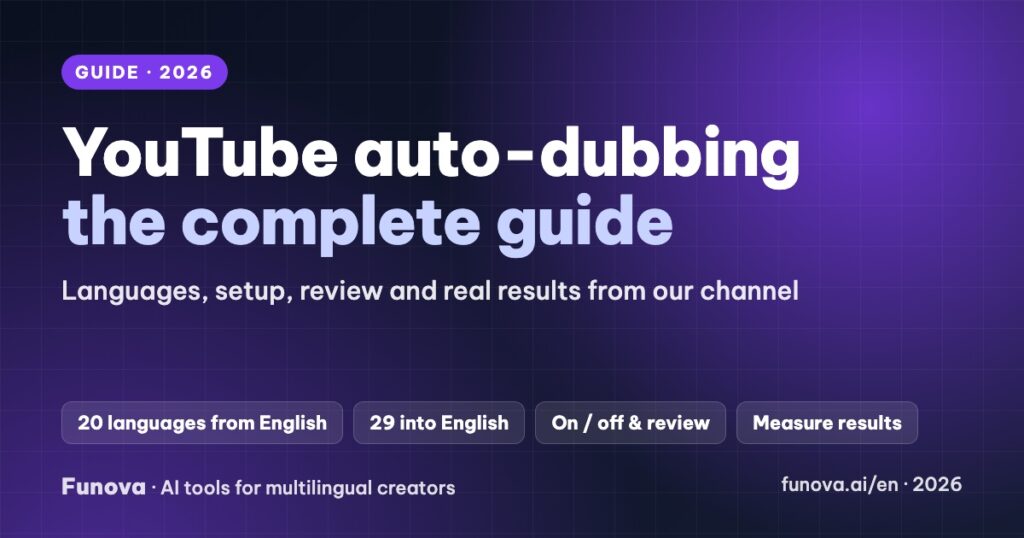
- Languages: English videos can be dubbed into about 20 languages. Videos in 29 other languages can be dubbed into English only.
- Control: it is on by default for eligible channels. You can turn it off, or choose to review every dub before it is published.
- Not dubbed: videos over 120 minutes, with little speech, with very fast speech, or with copyrighted content.
- Biggest lever for results: good translated titles and descriptions, which you control separately from the audio.
What is YouTube auto-dubbing?
Auto-dubbing takes the speech in your video, transcribes it, translates it and generates a synthetic voice track in another language. The dubbed track is attached to the same video, so views, likes and comments all stay on one upload. YouTube marks these videos as “auto-dubbed” in the description, and viewers can switch back to the original audio at any time.
The feature has grown fast. YouTube says more than six million viewers a day watched at least ten minutes of auto-dubbed content in December 2025. In 2026 it added Expressive Speech, which carries the speaker’s pitch, intonation and energy into the dub, for a group of eight languages including English, Hindi, French, German and Spanish. YouTube is also piloting lip sync, which adjusts mouth movements to match the dubbed audio.
Supported languages
This is the part most guides skip. Auto-dubbing does not translate every language into every other language.
| Your video is in… | YouTube can dub it into… |
|---|---|
| English | Arabic, Bengali, Dutch, French, German, Hebrew, Hindi, Indonesian, Italian, Japanese, Korean, Malayalam, Polish, Portuguese, Punjabi, Russian, Spanish, Tamil, Telugu, Ukrainian |
| Arabic, Bengali, Chinese (Simplified and Traditional), Dutch, Farsi, French, German, Hebrew, Hindi, Indonesian, Italian, Japanese, Korean, Malayalam, Polish, Portuguese, Punjabi, Romanian, Russian, Spanish, Swahili, Tamil, Telugu, Thai, Turkish, Ukrainian, Urdu, Vietnamese | English only |
So if your channel is in Spanish, Vietnamese or Thai, auto-dubbing gives you one extra language: English. To reach a third language, you need to create the dub yourself and upload it (see Going beyond English below).
Which videos are not dubbed
According to YouTube, a video is not eligible when it:
- is longer than 120 minutes;
- has no speech, only music, or very little speech;
- is in a language that is not supported, or the language cannot be detected;
- has speech that is too fast to dub in a listenable way;
- contains copyrighted content.
In our case, 6 of our 22 most-viewed videos showed “Processing failed” with no reason given. Two were adaptations of English-language talks, which fits the copyright rule. The other four were screen-recorded tutorials, and fast speech is our best guess. If a video matters to you and fails, a manual dub is the only route.
How to turn auto-dubbing on or off
Auto-dubbing is enabled by default for eligible channels. To check or change it:
On a computer
- Open YouTube Studio and click Settings.
- Go to Channel → Advanced settings.
- Tick or untick Allow automatic dubbing. If your channel is in the pilot, you will also see Allow experimental lip sync.
- Click Save.
In the YouTube Studio app
- Tap your profile picture, then Settings.
- Under Content, tap Automatic dubbing and switch it on or off.
- Tap Publish manually if you want to review each dub before viewers hear it.
How to review, publish or remove a dub
We recommend Publish manually for your first ten or so videos. You will learn quickly where the AI struggles with your content: brand names, jargon and jokes are the usual suspects.
- Preview: Content → select the video → Languages → click the language → use the preview to play the video with the dubbed track.
- Read the transcript: on the same Languages page, open the menu in the Audio row and click Review.
- Publish, unpublish or delete: on the Languages page, hover over the language, click the icon in the Audio column and choose the action. An unpublished dub can be republished later.
Fix the translated titles and descriptions
The dub is only half the job. Viewers in other countries discover your video through its title, thumbnail and description, and YouTube translates those automatically too. In our audit the machine-translated titles were the weakest part. Several were cut off mid-sentence, one stopped exactly at a quotation mark, and others translated clickbait word for word.
To write your own translated title and description: Content → select the video → Languages → Add language (or click an existing one) → Title & description. Keep titles under about 70 characters, use the words people actually search in that language, and keep any links in the description. We rewrote 18 English titles this way. Our AI dubbing case study tracks whether it changes the numbers.
How viewers hear the dubbed version
YouTube picks the audio track based on the viewer’s language preferences and viewing behavior. Viewers can also set a preferred language themselves, so they always hear either the original or a dubbed version. On any video they can switch tracks from the settings (gear) menu → Audio track.
One practical consequence: you cannot force a dub on viewers who prefer your original language. Your existing audience keeps hearing you.
How to measure results
In YouTube Studio, open Analytics → Advanced mode and add the Audio track breakdown. You will see views, watch time and average view duration for the original and for each dubbed track. Compare against geography (the Geography breakdown) to see which countries the dubs reach.
Write down a baseline before you change anything. Ours: over 28 days, the English auto-dub brought 0.5% of views and 0.2% of watch time, with an average view of 1:12 against 4:38 for the original. A low starting point is normal. What matters is the trend after you fix titles and descriptions.
Going beyond English
For any language YouTube will not auto-dub for you, use multi-language audio: you upload your own dubbed track to the same video (Content → video → Languages → Add language → Audio). YouTube has been rolling this feature out to most channels, with up to dozens of languages per video.
The dub itself can come from a voice actor or from an AI dubbing tool. AI tools such as ElevenLabs can clone your voice, so the dub sounds like you, and let you edit the translated script before generating the audio. We are testing this on three of our videos in Spanish, Portuguese and Indonesian. The case study reports the cost and results.
To pick a tool, see our comparison of the best AI dubbing tools: languages, voice cloning, lip sync and cost per dubbed minute.
Checklist before you rely on auto-dubbing
- Check that Allow automatic dubbing is on, and choose Publish manually for your first videos.
- Speak clearly and not too fast. The dub is only as good as the transcript.
- Avoid on-screen text in your own language where you can, or add translated captions.
- Write translated titles and descriptions yourself for your most important videos.
- Record a baseline in Advanced mode (Audio track), then re-check after 2 to 4 weeks.
- For languages YouTube does not offer, plan a manual dub and upload it as an audio track.
FAQ
Is YouTube auto-dubbing free?
Yes. There is no charge for automatic dubbing on eligible channels.
Can I auto-dub a non-English video into Spanish or French?
Not with YouTube’s automatic dubbing. Non-English videos can only be auto-dubbed into English. For other languages, create a dub with a tool or a voice actor and upload it through multi-language audio.
Will auto-dubbing affect my original audio or my current viewers?
No. The dub is an additional track. Viewers whose preferences match your original language keep hearing the original, and anyone can switch tracks.
Why did my video get no dub?
Common reasons are length over 120 minutes, too little speech, very fast speech, an undetected language, or copyrighted content. YouTube does not always show the reason in Studio.
Can I edit a dub?
You can review its transcript and preview it, then publish, unpublish or delete it. If the quality is not good enough for an important video, replace it with your own dub uploaded as an audio track.